Remember when we tried to set up that LAN party in the dorm and couldn’t figure out why nothing worked? Turns out we were using a hub from the Stone Age and wondering why our ping times were terrible. Yeah, good times.
Well, you asked me to explain networking devices for your DevOps career, and honestly? This is the stuff you’ll actually touch, configure, and troubleshoot daily. Whether you’re racking servers in a data center, setting up a home lab for Kubernetes experiments, or managing cloud infrastructure, understanding these devices is absolutely critical.
Let’s break down the three main networking devices you need to know—and why one of them should probably stay in the 1990s where it belongs.
1. Router: The Brain That Connects Everything
What Even IS a Router?
Think of a router as the traffic controller at a busy airport. It doesn’t just blindly forward planes (data packets)—it makes intelligent decisions about the best route to get them where they need to go.
Key facts about routers:
- Operates at Layer 3 (Network Layer) of the OSI model
- Makes decisions based on IP addresses
- Connects different networks together (hence the name “router”)
- The device that actually makes “the Internet” work
[Diagram Suggestion: Visual showing router connecting multiple networks – home network, office network, Internet, with IP addresses labeled]
Cisco Router Breakdown
When you’re working with Cisco routers (still the gold standard in enterprise networking), you need to know the physical ports. These aren’t just random holes in the back—each serves a specific purpose.
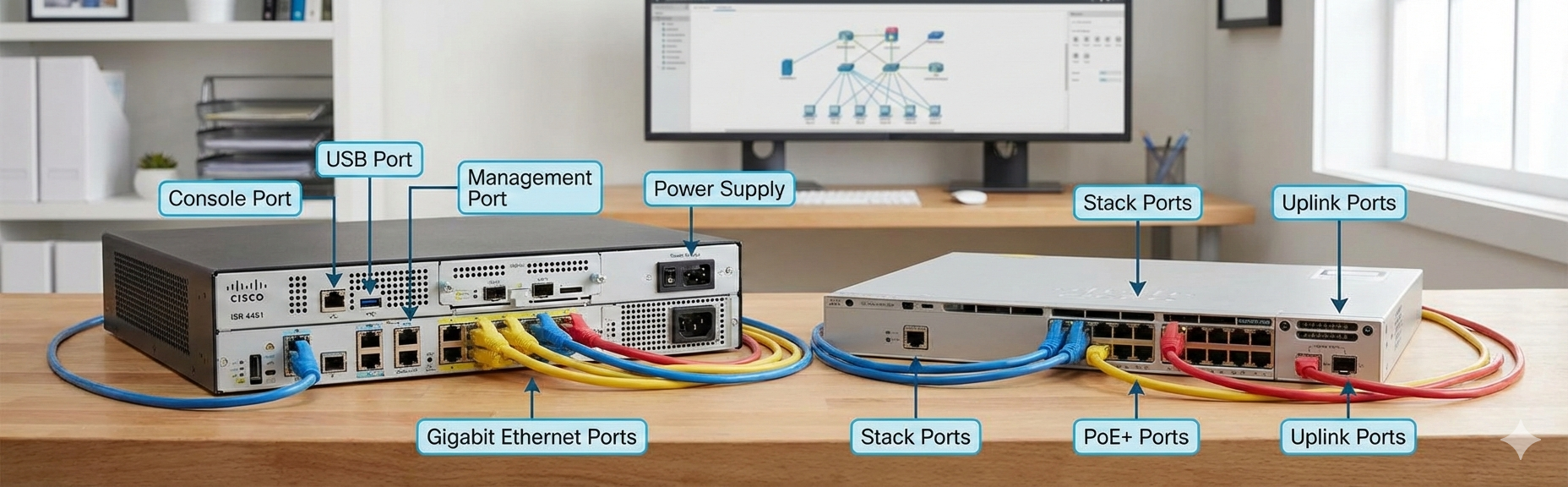
Router Ports: Your Field Guide
Let me walk you through what you’ll actually see on a typical Cisco router. This is the stuff that’ll save you when you’re standing in a cold server room at 2 AM trying to fix something.
[Photo Suggestion: Labeled image of actual Cisco router back panel with arrows pointing to each port type]
1. Power Supply Port
What it is: Where you plug in power. Revolutionary, I know.
DevOps reality:
- Always check if it’s dual power supply capable
- For critical infrastructure, you want redundant PSUs
- Label which circuit breaker it’s on (trust me on this)
Pro tip: In production environments, connect redundant power supplies to different PDUs (Power Distribution Units) on separate circuits. Murphy’s Law says both will fail, so prepare accordingly.
2. AUX Port (Auxiliary Port)
What it is: A legacy port originally designed for dial-up modem connections for remote management.
Modern uses:
- Out-of-band management (when network is down)
- Console server connections
- Honestly? Mostly unused in modern setups
DevOps consideration: In highly secure or remote installations, this can be your lifeline when network access fails. Connect it to a console server or cellular modem for emergency access.
[Info box: “Out-of-band management = access to device even when the network itself is broken”]
3. Gigabit Ethernet Ports (GG Ethernet)
What they are: Your high-speed data ports for actual network traffic. This is where the magic happens.
Speeds supported:
- 10/100/1000 Mbps (auto-negotiation)
- Some enterprise models: 10 Gbps+
Common uses:
- Router to switch connections (most common)
- Router to router connections
- WAN connections (connecting to ISP)
- Inter-VLAN routing in larger networks
DevOps scenarios where you’ll use these:
| Scenario | Configuration |
|---|---|
| Home lab Kubernetes cluster | Router connects to your switch, which connects to your nodes |
| Office network | Router connects to core switch for internal routing |
| Data center | Router connects to top-of-rack switches |
| Multi-region setup | Router provides WAN connectivity between sites |
Important notes:
- Faster data transfer: Gigabit speeds handle modern traffic loads
- Auto-MDI/MDIX: Modern ports auto-detect straight vs. crossover cables
- Link lights: Green = good connection, Amber = issues, Off = dead
[Diagram Suggestion: Network topology showing router with multiple Gigabit Ethernet connections to switches and other routers]
4. USB Port
What it is: USB port for external storage or console access.
Modern uses:
- IOS upgrades: Store router firmware on USB drive
- Configuration backups: Save running configs externally
- USB-to-console: Some newer devices support USB console connections
- File storage: Store logs, certificates, or other files
Real-world example:
# Copying IOS image from USB to router flash
Router# copy usbflash0:c2900-universalk9-mz.SPA.157-3.M5.bin flash:
DevOps best practice: Always keep a USB drive with the latest firmware versions and a backup config in your toolkit. It’s saved me more times than I can count.
5. Console Port
What it is: Your direct management access to the router, typically an RJ-45 or USB-C port.
This is your best friend because:
- Works even when network is completely broken
- Provides full access to CLI (Command Line Interface)
- No IP address needed—direct serial connection
- Initial router configuration REQUIRES this
What you’ll need:
- Console cable (usually light blue, RJ-45 to DB-9 or USB)
- Terminal emulation software (PuTTY, SecureCRT, screen, minicom)
Connection settings (memorize these):
- Baud rate: 9600
- Data bits: 8
- Parity: None
- Stop bits: 1
- Flow control: None
[Screenshot Suggestion: PuTTY/terminal window showing successful console connection to Cisco router]
DevOps workflow:
# Linux/Mac console connection
screen /dev/ttyUSB0 9600

# First thing you'll see
Router>

# Enter privileged mode
Router> enable
Router#

# Enter configuration mode
Router# configure terminal
Router(config)#
Real talk: Learn to love the console port. When everything else fails—network down, wrong IP configuration, forgotten passwords—the console port is your only way in.
6. Serial Ports
What they are: Older WAN connectivity ports for technologies like T1/E1 lines, Frame Relay, or PPP links.
Legacy uses:
- Leased line connections
- Point-to-point WAN links
- Frame Relay (if you’re working with ancient infrastructure)
Modern reality:
- Mostly replaced by Ethernet WAN connections
- Still see them in older enterprise installations
- If you’re working with legacy systems, you’ll encounter these
[Comparison Table:]
| Aspect | Serial WAN | Modern Ethernet WAN |
|---|---|---|
| Speed | Up to 45 Mbps (T3) | 1 Gbps – 100 Gbps |
| Cost | High, dedicated circuits | Lower, more flexible |
| Configuration | Complex (encapsulation types) | Simpler |
| Prevalence | Legacy systems | Modern standard |
DevOps consideration: If you inherit infrastructure with serial connections, document everything meticulously. These setups are often poorly documented and one misconfiguration can take down WAN connectivity.
Router Use Cases in DevOps
Let’s talk about where you’ll actually use routers in modern infrastructure:
1. Edge Routing (Internet Gateway):
- Your organization’s connection to the Internet
- NAT/PAT for internal to external address translation
- First line of defense (Access Control Lists)
2. Inter-VLAN Routing:
- Routing traffic between different network segments
- Enforcing security policies between departments
- Optimizing traffic flow
3. VPN Termination:
- Remote worker access
- Site-to-site VPN tunnels
- Secure connections between cloud and on-prem
4. WAN Connectivity:
- Connecting branch offices
- Multi-region cloud deployments
- Hybrid cloud architectures
[Infographic Suggestion: Four-quadrant diagram showing these use cases with icons and brief descriptions]
2. Switch: The High-Speed Traffic Director
What Makes a Switch Different from a Router?
If routers are the brains connecting different networks, switches are the efficient managers connecting devices WITHIN a network.
Cisco Switch fundamentals:
- Operates at Layer 2 (Data Link Layer / Access Layer)
- Makes forwarding decisions based on MAC addresses
- Connects multiple devices in the same network
- Much faster than routers for local traffic (because simpler decision-making)
The key difference:
- Router: “Where should this packet go BETWEEN networks?”
- Switch: “Which port should I forward this frame to WITHIN this network?”
[Diagram Suggestion: Side-by-side comparison showing router routing between networks vs. switch forwarding within a network]
Switch Ports and Components
Unlike routers with their diverse port types, switches are more straightforward—they’re mostly about Ethernet connections.
Console Port
What it is: Direct management access, just like on routers.
Why you need it:
- Initial configuration (switches don’t come pre-configured)
- Password recovery
- Troubleshooting when network access fails
- VLAN configuration
Connection process:
- Connect console cable from laptop to switch
- Open terminal emulator (same settings as router: 9600 8N1)
- Power on switch
- Watch boot process
- Enter configuration mode
[Code block showing typical switch boot sequence and first login]
Power Supply
Types you’ll encounter:
- Fixed power supply: Built-in, single PSU
- Modular/Redundant: Hot-swappable, dual PSU for high availability
- PoE (Power over Ethernet): Switches that power devices through Ethernet cables
DevOps considerations:
| Environment | Power Requirement |
|---|---|
| Home lab | Single PSU is fine |
| Small office | Single PSU acceptable |
| Production environment | ALWAYS redundant PSUs |
| Critical infrastructure | Redundant PSUs + UPS backup |
PoE switches are game-changers for:
- IP phones
- Wireless access points
- Security cameras
- IoT devices
[Photo Suggestion: Comparison of switch with single PSU vs. enterprise switch with redundant hot-swappable power supplies]
How Switches Actually Work (The MAC Address Table)
Here’s what’s happening under the hood when you plug devices into a switch:
Learning Process:
- Switch starts with empty MAC address table
- Device sends frame → Switch records source MAC + port
- Switch checks destination MAC in its table
- If found: forwards to specific port (unicast)
- If not found: floods to all ports except source (learning mode)
Example:
PC1 (MAC: AA:AA:AA:AA:AA:AA) on Port 1
PC2 (MAC: BB:BB:BB:BB:BB:BB) on Port 2

MAC Address Table:
AA:AA:AA:AA:AA:AA → Port 1
BB:BB:BB:BB:BB:BB → Port 2

PC1 sends to PC2:
Switch sees destination BB:BB:BB:BB:BB:BB
Looks up in table → Port 2
Forwards ONLY to Port 2 (efficient!)
[Animation Suggestion: Visual showing switch learning MAC addresses and forwarding frames intelligently]
Switch Types You’ll Encounter
Unmanaged Switches:
- Plug and play
- No configuration options
- Cheap ($20-100)
- Home networks, small deployments
Managed Switches:
- Full CLI/GUI configuration
- VLANs, QoS, port security
- Enterprise-grade
- What you’ll use in production ($500-10,000+)
Layer 3 Switches:
- Can route between VLANs
- Blur the line between switch and router
- Common in modern data centers
- Best of both worlds (Layer 2 + Layer 3 capabilities)
DevOps Use Cases for Switches
1. Server Rack Connectivity (Top-of-Rack Switch):
[Servers 1-20] → [ToR Switch] → [Core Switch/Router]
- Each rack has a switch
- Servers connect at high speed (10/40/100 Gbps)
- Uplink to core network
2. Kubernetes Cluster Networking:
- Nodes connect to switch
- Low-latency pod-to-pod communication
- VLAN segmentation for security
3. VLAN Segmentation:
VLAN 10: Production servers
VLAN 20: Development environment
VLAN 30: Management network
VLAN 99: Out-of-band management
4. Link Aggregation (LACP):
- Multiple physical links act as one
- Increased bandwidth + redundancy
- Common for server-to-switch connections
[Diagram Suggestion: Data center topology showing ToR switches connected to servers and uplinked to core switches]
3. Hub: The Dumb Device That Won’t Die (But Should)
What Is a Hub? (And Why You Probably Don’t Want One)
A hub is like that group project member who just repeats everything everyone says without understanding any of it.
Hub characteristics:
- Operates at Layer 1 (Physical Layer)
- No processing or memory for intelligent forwarding
- No MAC address learning
- Broadcasts everything to everyone
- Also called a “repeater” (because that’s all it does)
[Illustration Suggestion: Comic-style drawing showing hub blindly shouting all messages to everyone vs. switch smartly delivering to specific recipients]
How Hubs Actually “Work” (Poorly)
What happens when you use a hub:
- Device A sends frame to Device B
- Hub receives frame on one port
- Hub blindly copies frame to ALL other ports
- Everyone hears everything (massive security risk)
- Collisions are common (multiple devices transmitting)
- Performance degrades as you add devices
Collision Domains:
- All devices on a hub share one collision domain
- Only one device can transmit at a time
- CSMA/CD (Carrier Sense Multiple Access with Collision Detection) required
- More devices = more collisions = worse performance
[Graph Suggestion: Line chart showing network performance degrading as more devices are added to a hub vs. remaining stable with a switch]
Hub vs. Switch: The Brutal Comparison
| Feature | Hub | Switch |
|---|---|---|
| OSI Layer | Layer 1 (Physical) | Layer 2 (Data Link) |
| Intelligence | Zero | MAC address learning |
| Forwarding | Broadcasts to all | Unicast to specific port |
| Bandwidth | Shared among all devices | Dedicated per port |
| Collision Domain | All ports = one domain | Each port = separate domain |
| Security | Everyone sees everything | Traffic isolated per port |
| Performance | Degrades with devices | Consistent |
| Cost | $10-30 | $50-500+ |
| Modern use | DON’T | DO |
Why Hubs Are Basically Ancient History
The problems with hubs:
1. Security nightmare:
- All traffic visible to all devices
- Easy to run Wireshark and capture everything
- No port security
- Perfect for attackers, terrible for you
2. Performance disaster:
- Shared bandwidth (100 Mbps hub = 100 Mbps TOTAL, not per port)
- Collision domains create delays
- Half-duplex only (can’t send and receive simultaneously)
3. No modern features:
- No VLANs
- No QoS
- No port security
- No management capabilities
[Meme Suggestion: “Using a hub in 2026 is like using a fax machine to send your resume” with side-by-side dated tech comparison]
When Would You EVER Use a Hub? (Spoiler: Almost Never)
Legitimate use cases (extremely rare):
1. Network monitoring/analysis:
- When you specifically WANT to see all traffic
- Connect hub between two devices
- Plug in packet analyzer to third port
- Captures all communications
2. Legacy equipment:
- Some ancient industrial control systems
- Equipment that expects hub behavior
- When you literally have no other option
3. Education/demonstration:
- Teaching collision domains
- Showing why switches are better
- Historical reference
DevOps reality check: If someone hands you a hub for production infrastructure, politely explain that it’s 2026 and walk away. Or use it as a doorstop. Both are valid options.
Practical Guide: Cables and Connections
Since we’re talking about physical devices, let’s address the elephant in the room: cables. You can have the best router and switch in the world, but if your cables are garbage, your network is garbage.
Straight-Through vs. Crossover Cables
Straight-Through Cable (EIA/TIA-568B both ends):
- Most common cable type
- Used for: computer to switch, router to switch
- Pin 1 → Pin 1, Pin 2 → Pin 2, etc.
Crossover Cable (568B one end, 568A other end):
- Used for: switch to switch (older), computer to computer
- Swaps transmit and receive pins
- Mostly obsolete (Auto-MDI/MDIX handles this now)
[Diagram Suggestion: Side-by-side pinout diagrams showing straight-through vs. crossover cable configurations]
Building Your Own Ethernet Cables (Because You Should Know How)
Tools you need:
- Cat5e/Cat6 cable (buy a 1000ft box)
- RJ-45 connectors
- Crimping tool
- Cable stripper
- Wire cutters
- Cable tester
[Photo Suggestion: All tools laid out with labels, professional workspace setup]
Step-by-Step: Making a Straight-Through Cable
1. Cut cable to desired length
- Add extra 6 inches for mistakes
- Measure twice, cut once
2. Strip outer jacket
- Remove 0.5-1 inch of outer insulation
- Don’t nick the internal wires
- Use stripper or carefully use scissors
3. Untwist and arrange wires
- Follow EIA/TIA-568B standard:
- White/Orange
- Orange
- White/Green
- Blue
- White/Blue
- Green
- White/Brown
- Brown
Memory trick: “Orange house, green grass, brown earth, blue sky”
[Color-coded diagram showing wire order with actual photos of each step]
4. Straighten and trim wires
- Make them perfectly straight
- Trim to same length (about 0.5 inch from jacket)
- All wires should be flush
5. Insert into RJ-45 connector
- Hold connector with tab facing DOWN
- White/Orange on the LEFT
- Push wires all the way in until they hit the end
- Jacket should enter the connector
Critical checks before crimping: ✓ Wires reach the end of connector
✓ Colors in correct order
✓ Jacket inside connector
✓ No exposed copper before connector
6. Crimp the connector
- Insert into crimper
- Squeeze firmly
- Should hear/feel a solid “crunch”
- Pins pierce wire insulation
- Strain relief clamps onto jacket
7. Repeat for other end
- Same wire order (straight-through = both ends identical)
8. Test the cable
- Use cable tester
- Verify all 8 wires light up in order
- Test for continuity and correct pinout
9. Real-world test
- Plug into switch and computer
- Check link lights (green = good)
- Test with
pingor actual traffic
[Video/GIF Suggestion: Time-lapse of entire cable-making process from start to finish]
Making a Crossover Cable (Just in Case)
Why you might still need this:
- Older equipment without Auto-MDI/MDIX
- Direct PC-to-PC connections
- Some specific legacy scenarios
The difference:
- End A: 568B standard (same as straight-through)
- End B: 568A standard
568A pinout:
- White/Green
- Green
- White/Orange
- Blue
- White/Blue
- Orange
- White/Brown
- Brown
Notice: Pins 1-2 and 3-6 are swapped (transmit ↔ receive)
[Diagram Suggestion: Clear visual showing how crossover cable swaps TX and RX pairs]
Cable Testing Best Practices
What cable testers check:
- Continuity: All 8 wires connected?
- Wire map: Correct order and no shorts?
- Opens: Any broken connections?
- Shorts: Wires touching each other?
- Crosses: Wires connected to wrong pins?
Advanced testers also measure:
- Cable length
- Propagation delay
- Signal quality
- PoE capability
[Photo Suggestion: Cable tester showing PASS result with all 8 LEDs lit in sequence]
Common Cable Problems and How to Fix Them
| Problem | Symptom | Solution |
|---|---|---|
| Wires not fully inserted | Intermittent connection | Re-terminate, ensure wires reach end |
| Wrong wire order | No connection or slow speeds | Check pinout, re-terminate |
| Jacket not in connector | Cable pulls out easily | Re-terminate with jacket inside |
| Nicked wires during stripping | Crosstalk, errors | Cut off, start over |
| Dirty/damaged connector | Intermittent issues | Replace connector |
| Cable too long | Signal degradation | Ethernet max: 100 meters (328 feet) |
DevOps Career Advice: Why This Physical Stuff Still Matters
Look, I know you’re thinking “Why do I need to know this? Everything’s in the cloud now!”
Here’s the reality:
1. Home Lab is essential:
- You WILL build a home lab
- You WILL need to cable it properly
- Understanding physical networking makes you better at virtual networking
2. Data centers haven’t disappeared:
- Hybrid cloud is everywhere
- Somebody has to rack those servers
- Physical infrastructure skills = job security
3. Troubleshooting superpowers:
- When everyone is checking configs, you’ll be checking cables
- “It’s probably DNS” is wrong 50% of the time—it’s actually Layer 1
- Physical layer problems cause mysterious issues
4. Interview edge:
- Most DevOps candidates only know cloud
- Physical networking knowledge sets you apart
- Shows fundamental understanding
[Quote Box: “I’ve seen senior engineers spend hours troubleshooting a complex networking issue, only to discover someone unplugged a cable.” – Every sysadmin ever]
Quick Reference: Device Comparison Cheat Sheet
When to use what:
Router:
✓ Connecting different networks
✓ Internet gateway
✓ Inter-VLAN routing
✓ WAN connectivity
✗ High-density local connections
✗ When you just need simple forwarding

Switch:
✓ Connecting devices in same network
✓ Server rack connectivity
✓ High-port-density needs
✓ VLAN segmentation
✗ Routing between networks
✗ WAN connections

Hub:
✓ Network analysis (rare)
✓ Legacy equipment (unfortunate)
✓ Making your life harder (why?)
✗ Literally everything else
Troubleshooting Flowchart for Network Device Issues
[Flowchart Suggestion:]
Network not working?
↓
Check Layer 1 (Physical):
- Cables plugged in? → No → Plug them in
- Link lights on? → No → Check cable/port
- Power on? → No → Turn it on
↓
Check Layer 2 (Data Link):
- Correct VLAN? → No → Fix VLAN config
- Port enabled? → No → Enable port
- MAC address learned? → No → Check switch table
↓
Check Layer 3 (Network):
- Correct IP? → No → Fix IP config
- Default gateway set? → No → Set gateway
- Can ping gateway? → No → Check routing
↓
Still broken? → It's DNS (probably)
The Bottom Line: Master the Basics
Here’s what I want you to remember from this whole guide:
Routers:
- Layer 3, IP-based decisions
- Connect different networks
- Know your ports (console is your best friend)
Switches:
- Layer 2, MAC-based forwarding
- Connect devices within networks
- Enterprise infrastructure backbone
Hubs:
- Layer 1, no intelligence
- Broadcast to everyone
- Just… don’t. It’s 2026.
Physical skills matter:
- Learn to make cables
- Understand port types
- Troubleshoot from Layer 1 up
DevOps relevance:
- Home labs require physical setup
- Hybrid cloud needs physical understanding
- Troubleshooting skills = career advancement
Your Action Items
This week:
- ☐ Buy a small managed switch for your home lab ($50-100)
- ☐ Get a cable making kit ($30-50)
- ☐ Make 5 cables and test them
- ☐ Console into a router or switch
- ☐ Document your home network topology
This month:
- ☐ Set up a 3-node homelab cluster
- ☐ Configure VLANs on your switch
- ☐ Practice router configuration
- ☐ Build a network diagram of your infrastructure
- ☐ Write automation scripts for device backups
This year:
- ☐ Get hands-on with enterprise equipment
- ☐ Consider CCNA certification
- ☐ Contribute to network automation projects
- ☐ Mentor someone on networking basics
Final Thoughts
Networking devices are the foundation of everything we do in tech. You can’t run Kubernetes without understanding how switches work. You can’t architect multi-region deployments without understanding routers. And you can’t troubleshoot mysterious issues without understanding the physical layer.
So yeah, this “basic” stuff? It’s actually the most important stuff.
Now go build something awesome. And when you do, remember to label your cables. Future you will thank present you.
Got questions? Need help troubleshooting? Hit me up. I’m always down to help debug network issues or just talk shop over coffee.
Stay curious, stay learning, and remember: when in doubt, check the cable. 🔌
P.S. – If this guide helped you understand networking devices better, share it with another DevOps engineer who’s struggling with the basics. We all started somewhere, and we all need that friend who can explain complex stuff in simple terms.
P.P.S. – Seriously, don’t use hubs in production. I’m begging you.